Placing/Removing a Printable Disc
Before Placing a Printable Disc
A printable disc differs from regular disc (BD/DVD/CD, etc.) in that its label surface has been specially processed or printing by an inkjet printer.
The following items are needed to print onto the printable disc.
-
Multi-purpose tray (supplied with the printer)
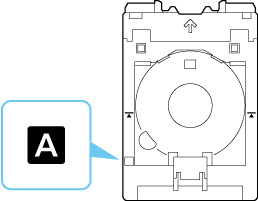
* Use the multi-purpose tray with "A" on the surface.
-
4.72 in. (12 cm) printable disc

Obtain a printable disc with a label surface compatible with inkjet printing.
Placing a Printable Disc
To print onto a printable disc, place it on the supplied multi-purpose tray, and then insert it into the printer.
 Important
-
Do not mount the multi-purpose tray until the message prompting you to load the printable disc appears. Doing so can damage the printer.
-
Remove any paper in the manual feed tray.
 Note
Note
-
If test printing is executed onto test printing paper, depending on the paper type, the printer may not be able to read its size correctly, preventing the border areas from being printed. Test printing paper should be used for purposes of checking the envisioned layout.
-
Take out multi-purpose tray from multi-purpose tray storage compartment.
-
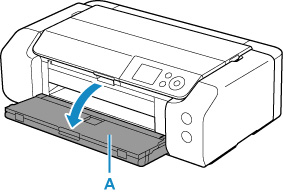
Open the paper output tray (A) gently.
-
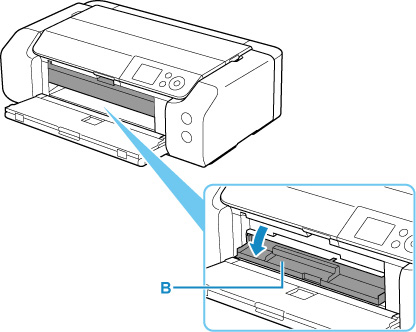
When message prompting you to load printable disc appears, open the multi-purpose tray guide (B).
-
Place printable disc on multi-purpose tray.
Important-
Check that there is no dirt on the multi-purpose tray before placing a printable disc on it.
-
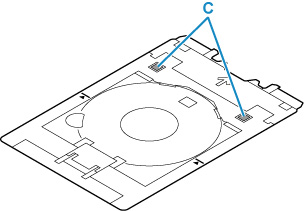
When placing a printable disc on the multi-purpose tray, do not touch the printing surface of the disc or the reflectors (C) on the multi-purpose tray.
-
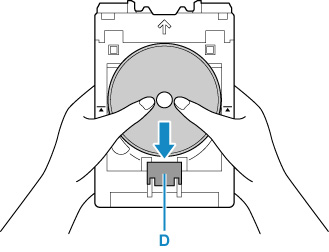
WITH PRINT SIDE FACING UP, place printable disc, and press it against lock (D) at bottom.
-
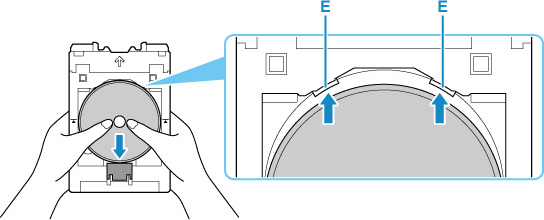
While pressing down lock with printable disc, insert top of printable disc into slits (E).
-
-
Place multi-purpose tray on multi-purpose tray guide.
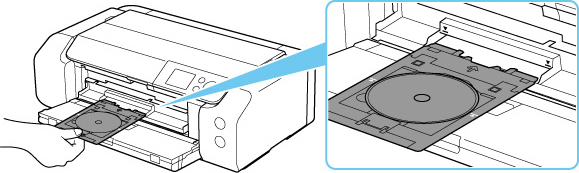
-
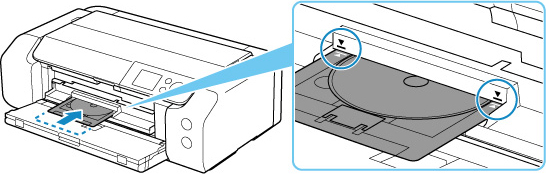
Insert multi-purpose tray straight in in horizontal direction until arrow (
 ) on multi-purpose tray guide is approximately aligned with arrow (
 ) on multi-purpose tray.Important
-
Do not insert the multi-purpose tray beyond the arrow (
) on the multi-purpose tray guide.
-
Note
-
The multi-purpose tray may be ejected after a certain amount of time passes. In such a case, follow the on-screen instructions to place the multi-purpose tray again.
Removing a Printable Disc
-
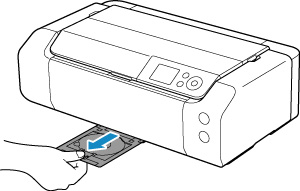
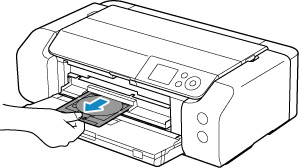
Pull out multi-purpose tray.
-
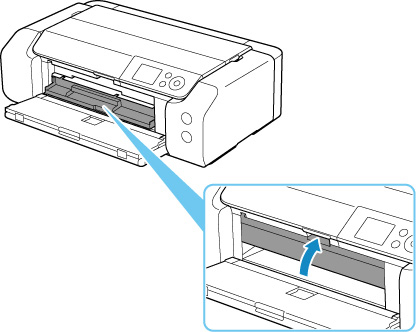
Close the multi-purpose tray guide.
Important-
If the multi-purpose tray guide is opened, you cannot print on paper as it will not feed properly. Make sure that the multi-purpose tray guide is closed.
-
-
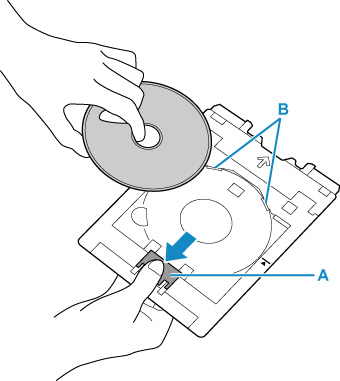
While pressing down lock (A), take out printable disc from slits (B) on multi-purpose tray, and remove it.
Important-
Do not touch the printing surface when removing the disc from the multi-purpose tray.
Note-
Allow the printing surface to dry before removing the disc. If you see printing on the multi-purpose tray or on the transparent parts of the inner or outer diameters of the printable disc, wipe them clean after the printing surface has dried.
-
-
Insert multi-purpose tray straight into multi-purpose tray storage compartment.
When not using the multi-purpose tray, store it in the multi-purpose tray storage compartment.
